Cloudera Manager Deployment
This article explains the necessary steps to install Cloudera Manager (CM) on CentOS7.9. CentOS7.9 is one of the supported operating systems in CDP Private Cloud solution. Please ensure that all prerequisites have already been prepared prior to running this procedure.
- TOC
Sanity Check
-
Ensure that JDK has already been installed in the host.
# rpm -qa | grep jdk copy-jdk-configs-3.3-10.el7_5.noarch java-11-openjdk-11.0.14.1.1-1.el7_9.x86_64 java-11-openjdk-headless-11.0.14.1.1-1.el7_9.x86_64 java-11-openjdk-devel-11.0.14.1.1-1.el7_9.x86_64 -
The external DNS server must contain the forward and reverse zones of the company domain name. The external DNS server must be able to resolve the hostname of CM host and the 3rd party components (includes Kerberos, LDAP server, external database, NFS server) and perform reverse DNS lookup.
# nslookup idm Server: 10.15.4.150 Address: 10.15.4.150#53 Name: idm.cdpkvm.cldr Address: 10.15.4.150 # nslookup 10.15.4.150 150.4.15.10.in-addr.arpa name = idm.cdpkvm.cldr. -
NTP client of the CM host is synchronizing time with the external NTP server.
-
Join the CM host to the Kerberos domain. In this demo, the CM host joins the Red Hat IDM as the Kerberos server by running the ipa-client-install script. As a result, the
/etc/krb5.conffile in the CM host should be similar to the following example. Hostidm.cdpkvm.cldris the Red Hat IDM server.[libdefaults] default_realm = CDPKVM.CLDR dns_lookup_kdc = false dns_lookup_realm = false ticket_lifetime = 86400 renew_lifetime = 604800 forwardable = true default_tgs_enctypes = aes256-cts default_tkt_enctypes = aes256-cts permitted_enctypes = aes256-cts udp_preference_limit = 1 kdc_timeout = 3000 [realms] CDPKVM.CLDR = { kdc = idm.cdpkvm.cldr admin_server = idm.cdpkvm.cldr }Test the above Kerberos settings by running
kinitandklistcommands with the provisioned user in the CM host as shown in the following example.# kinit ldapuser1 Password for ldapuser1@CDPKVM.CLDR: <password>Ensure that the output of the
klistcommand must includerenew until. This is a prerequisite to ensure successful CDW provisioning on the ECS platform. The/etc/krb5.conffile in the CM host will be used in the Hive-associated pods on the ECS system.# klist Ticket cache: FILE:/tmp/krb5cc_0 Default principal: ldapuser1@CDPKVM.CLDR Valid starting Expires Service principal 06/02/22 16:49:03 06/03/22 16:49:01 krbtgt/CDPKVM.CLDR@CDPKVM.CLDR renew until 06/09/22 16:49:01
CM Installation
-
Download the Cloudera repo with the user credentials.
# cd /etc/yum.repos.d/ # wget https://<username>:<password>@archive.cloudera.com/p/cm7/7.5.5/redhat7/yum/cloudera-manager.repo -
Edit the Cloudera repo. Insert the username and password parameters.
[cloudera-manager] name=Cloudera Manager 7.5.5 baseurl=https://archive.cloudera.com/p/cm7/7.5.5/redhat7/yum/ gpgkey=https://archive.cloudera.com/p/cm7/7.5.5/redhat7/yum/RPM-GPG-KEY-cloudera username=<userid> password=<password> gpgcheck=1 enabled=1 autorefresh=0 type=rpm-md -
Import the RPM-GPG-KEY.
# rpm --import https://<userid>:<password>@archive.cloudera.com/p/cm7/7.5.5/redhat7/yum/RPM-GPG-KEY-cloudera -
Install the CM packages.
# yum install -y cloudera-manager-daemons cloudera-manager-agent cloudera-manager-server -
Run the scm_prepare_database.sh script. In this demo,
cm.cdpkvm.cldris the CM hostname.db.cdpkvm.cldris the external PostgreSQL hostname.# /opt/cloudera/cm/schema/scm_prepare_database.sh postgresql -h db.cdpkvm.cldr--scm-host cm.cdpkvm.cldr scm scm -
Enable and start the cloudera-scm-server service.
# systemctl enable cloudera-scm-server # systemctl start cloudera-scm-server -
Monitor the cloudera-scm-server service log.
# tail -f /var/log/cloudera-scm-server/cloudera-scm-server.log -
Enable AutoTLS. This command creates self signed certificate as an example. User may also sign the CSR with the preferred CA certificate.
# export JAVA_HOME=/usr/lib/jvm/java-11-openjdk-11.0.14.1.1-1.el7_9.x86_64 # /opt/cloudera/cm-agent/bin/certmanager --location /var/lib/cloudera-scm-server/certmanager setup --configure-services -
After successful installation, log in to the CM website.
https://cm.cdpkvm.cldr:7183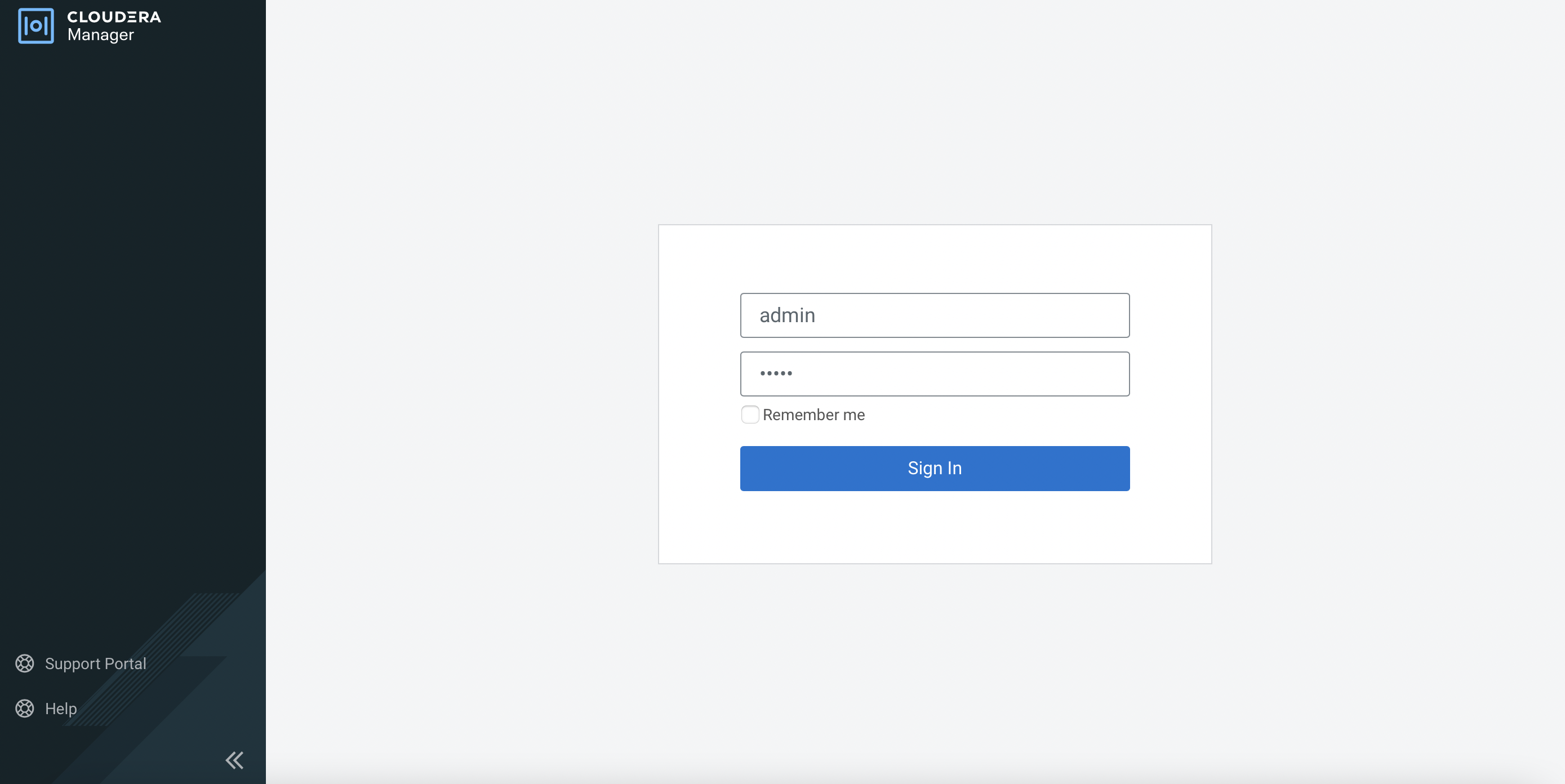
-
Select the Cloudera license txt file as requested.
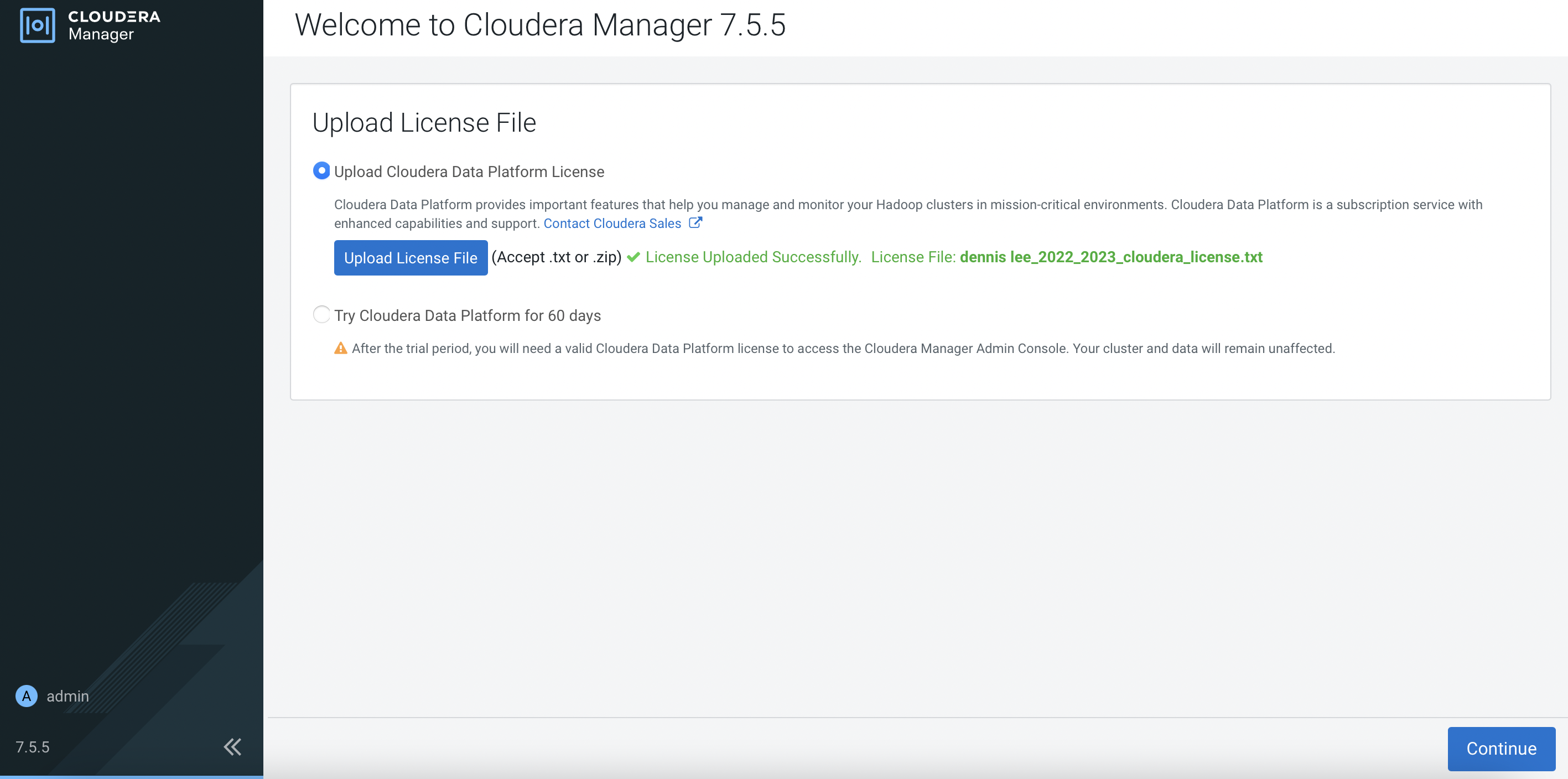
-
Click
here to setup a KDClink and clickContinue.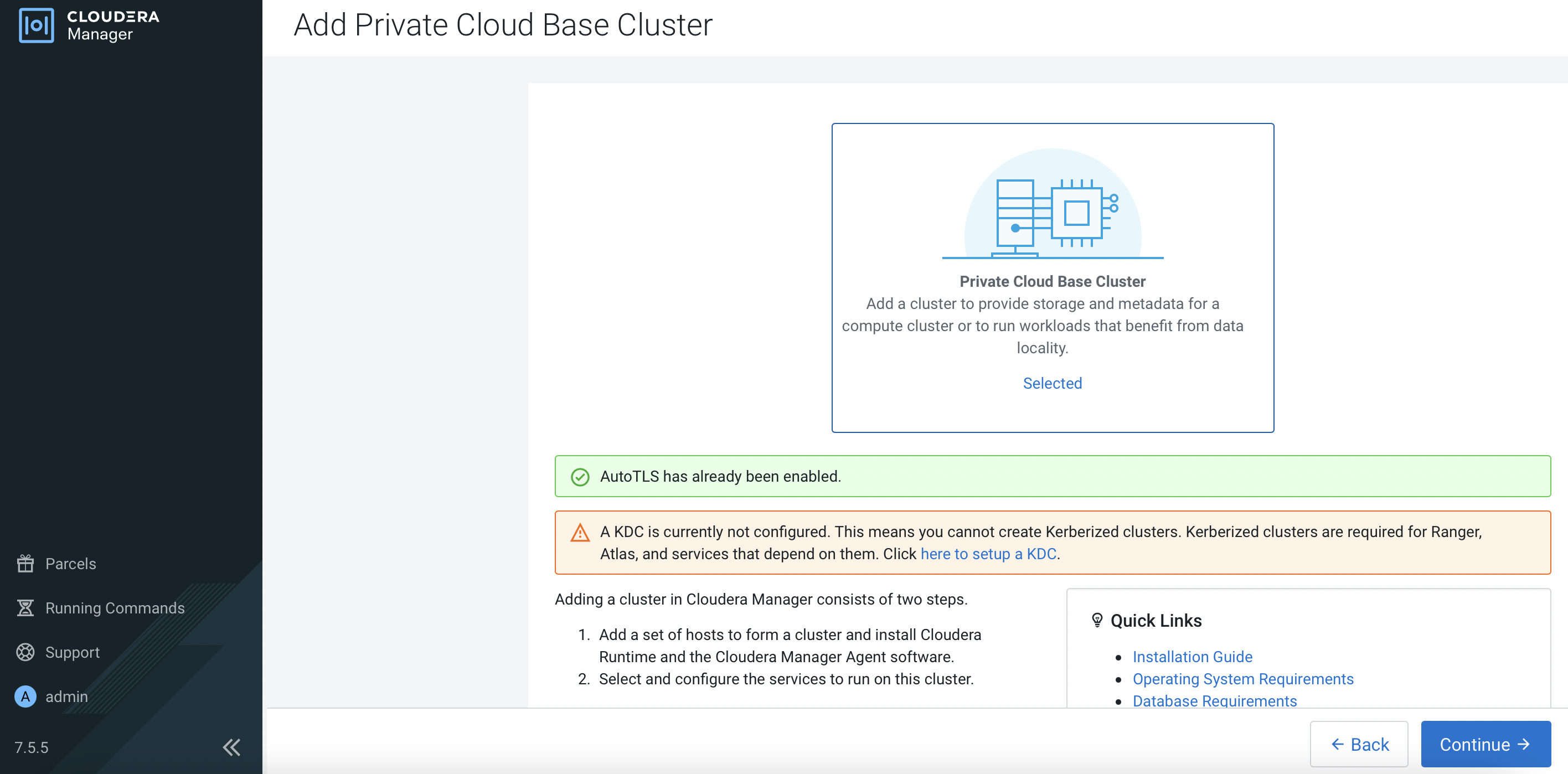
-
In this demo, Red Hat IPA is the KDC server. Apply the instructions based on the OS of the CM. Select
I have completed all the above steps.and clickContinue.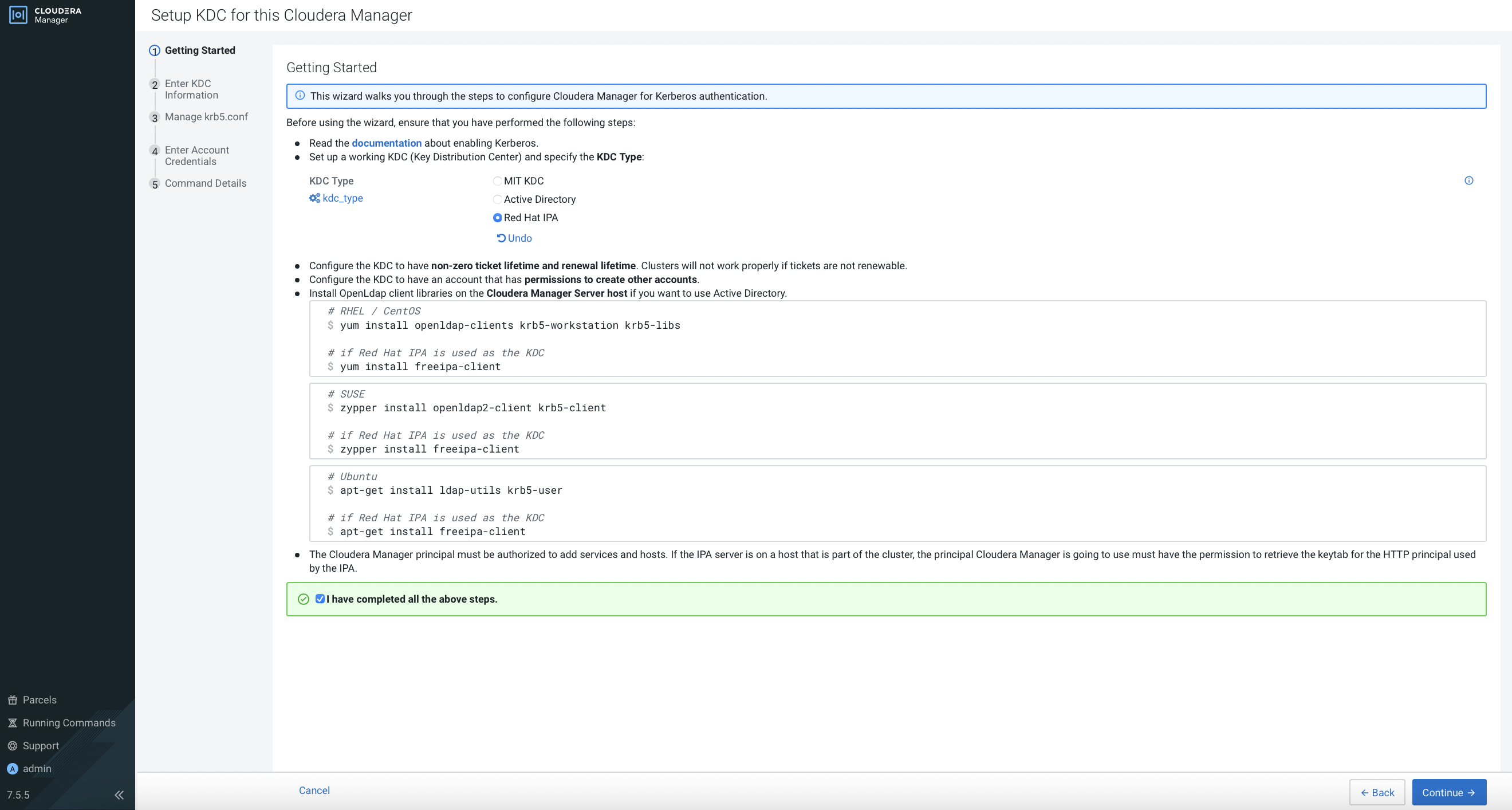
-
Fill in the fields and click
Continue.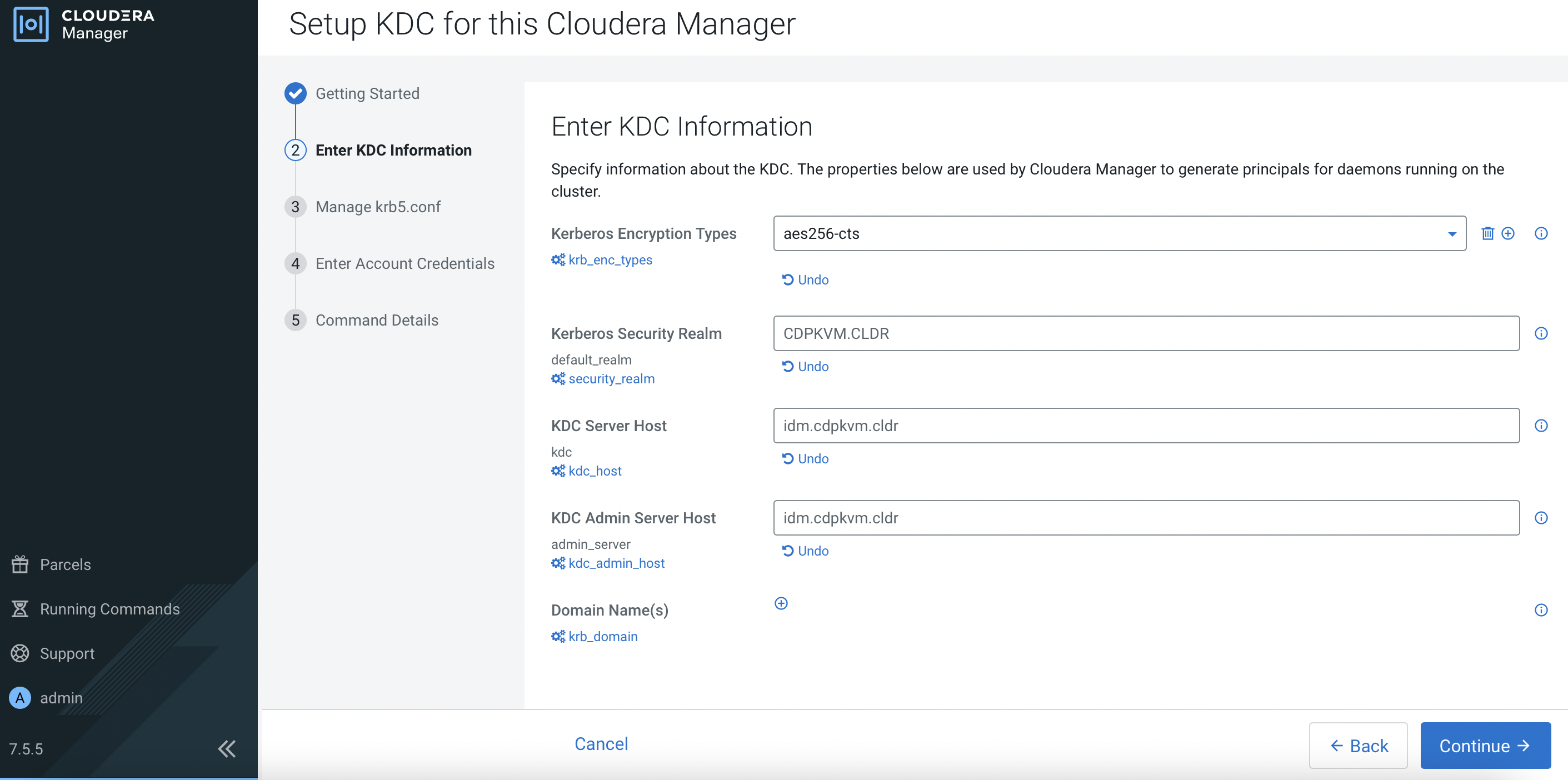
-
Select
Manage krb5.conf through Cloudera Manageroption and clickContinue.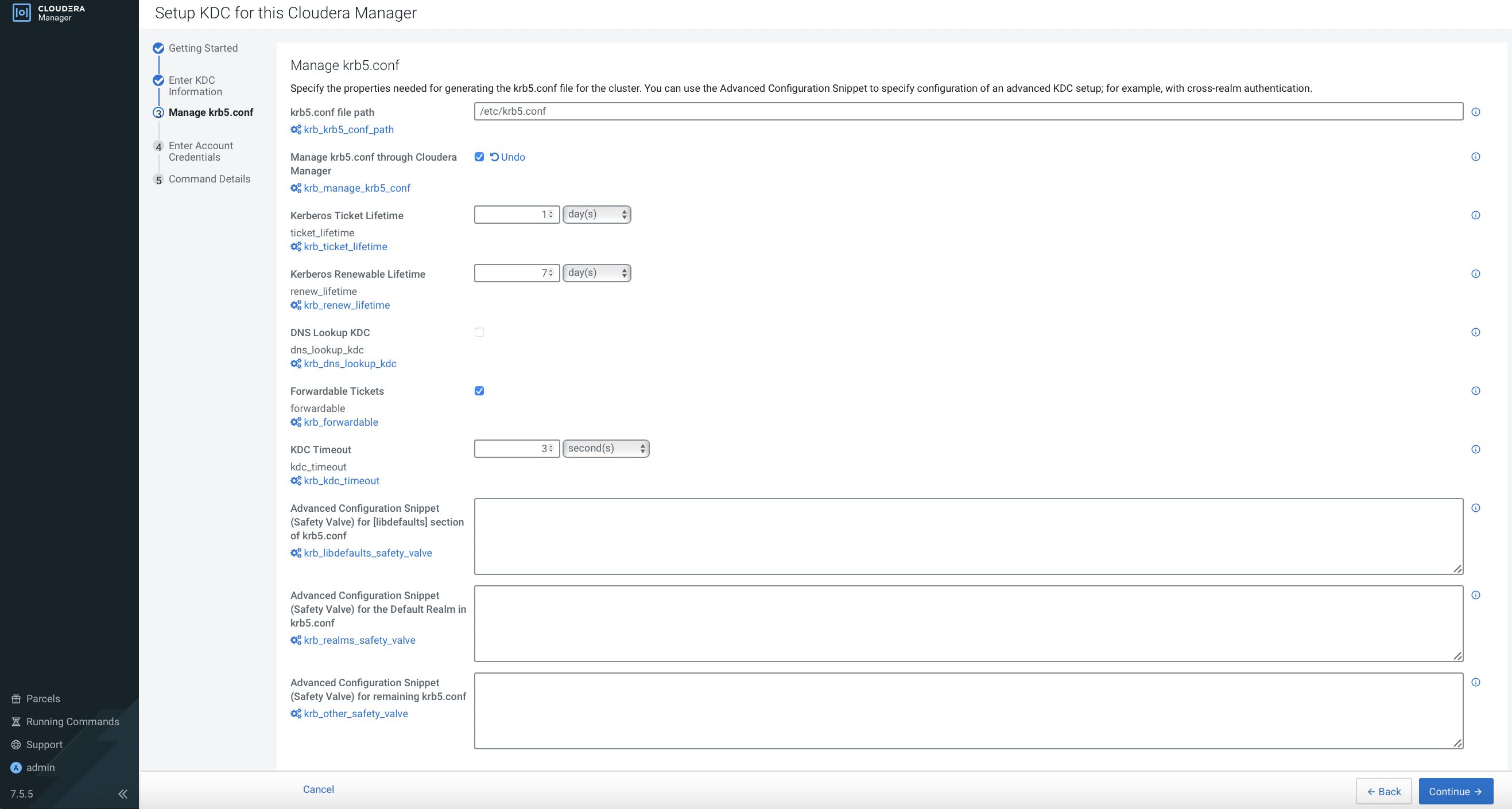
-
Enter account credentials and click
Continue.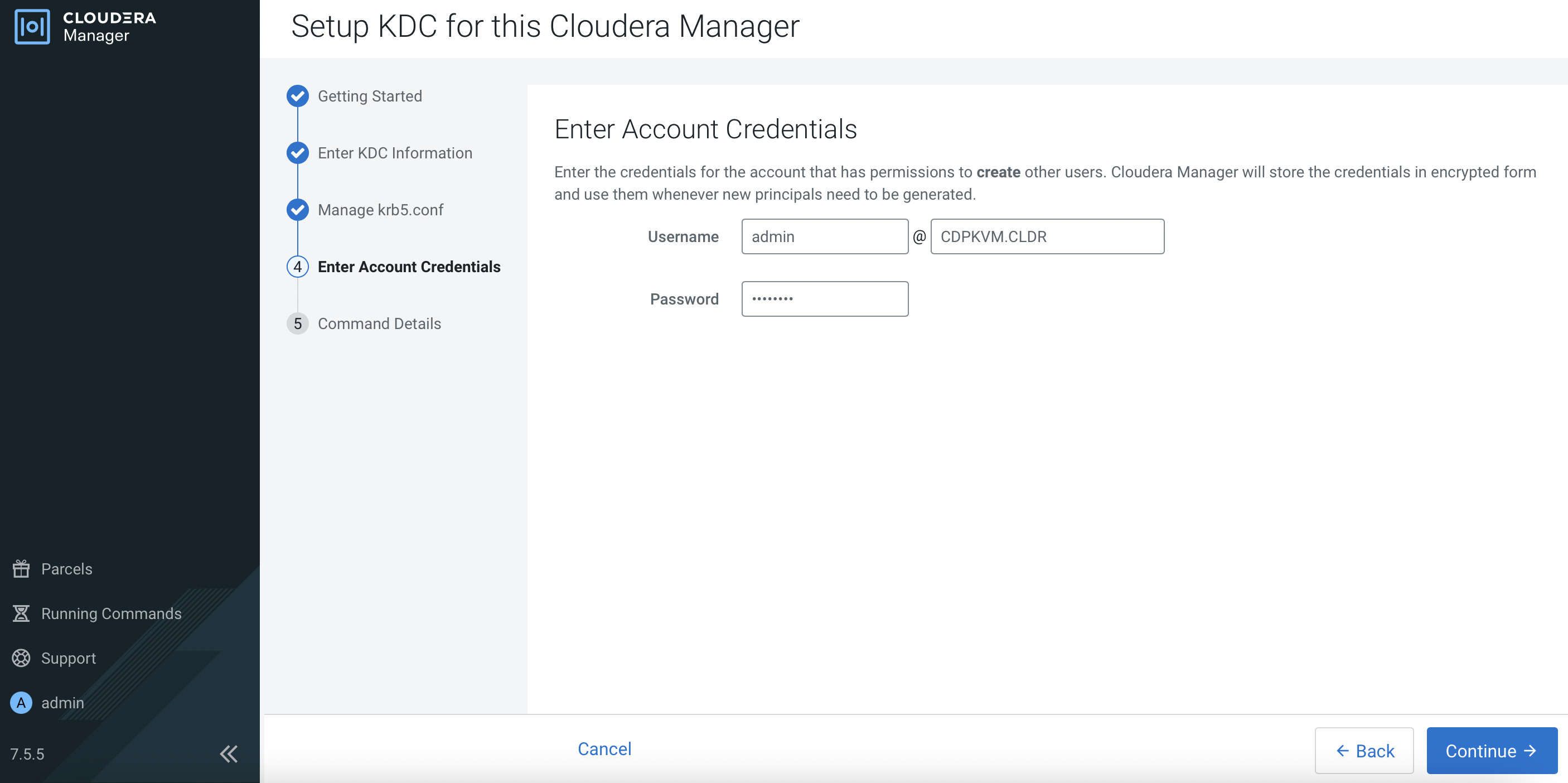
-
The following output shows you have successfully setup the KDC. Click
Finish.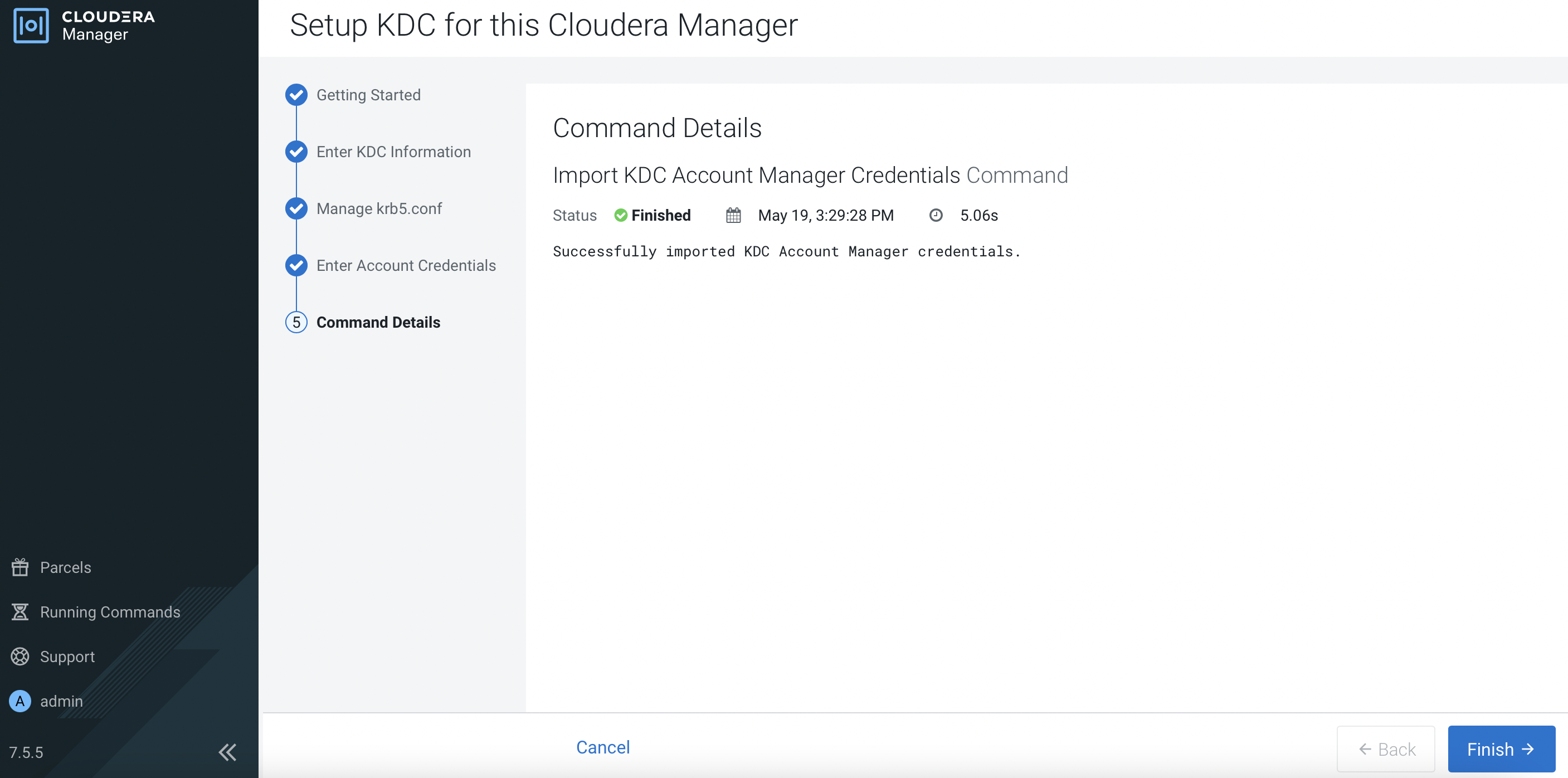
-
Both AutoTLS and KDC have successfully been set up in CM.
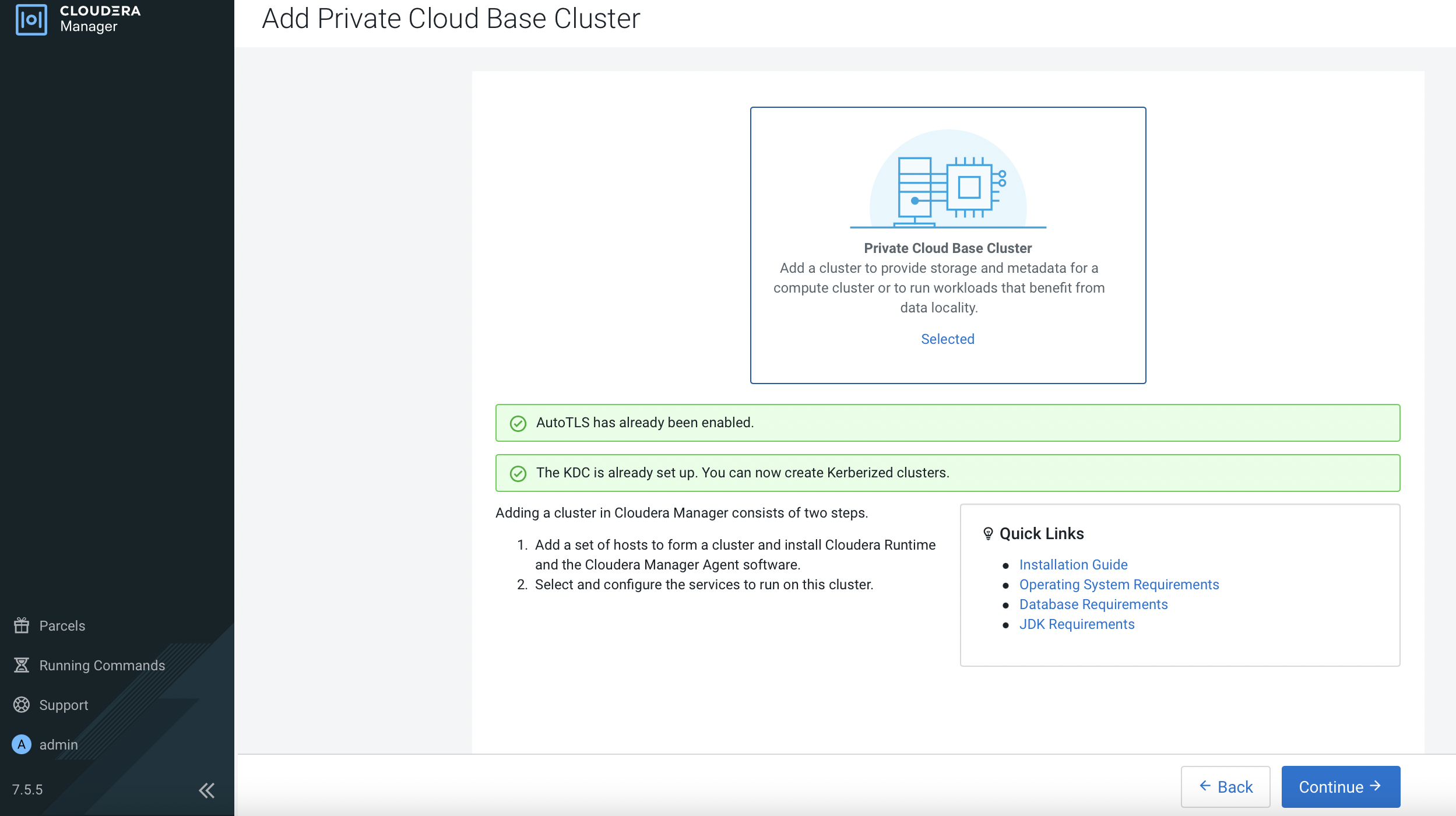
CM Integration with External LDAP
-
Navigate to
Administration>Settings. Search forbackendand select the following options so that CM will also look up the user in the external LDAP server.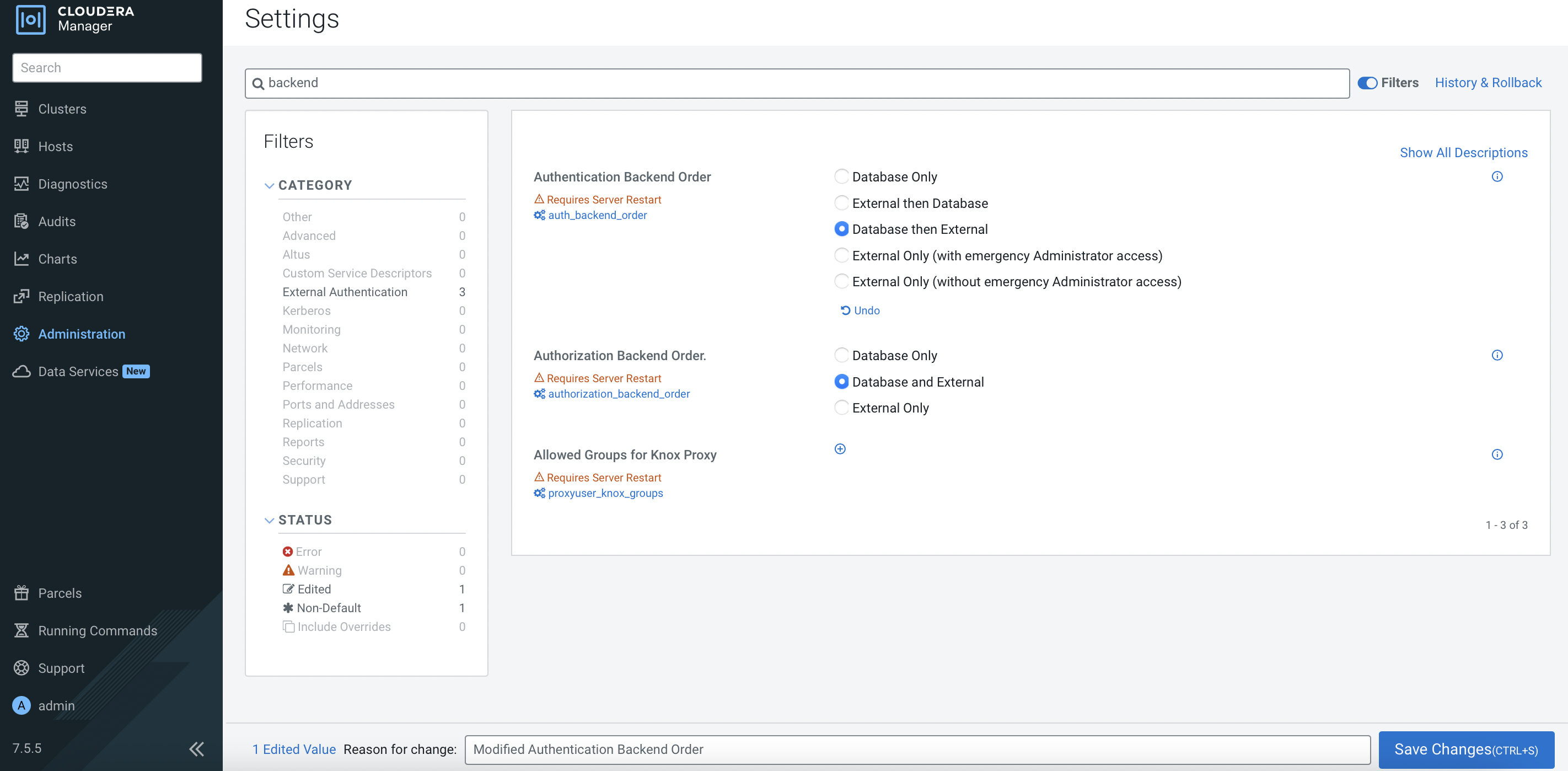
-
Configure CM with the necessary external LDAP server settings as shown in the following example. Note that this demo is connected to the Red Hat IPA.
Parameter Value External Authentication Type LDAP LDAP URL ldap://idm.cdpkvm.cldr LDAP Bind User Distinguished Name uid=admin,cn=users,cn=accounts,dc=cdpkvm,dc=cldr LDAP Bind Password passwordLDAP User Search Filter (uid=0) LDAP User Search Base cn=users,cn=accounts,dc=cdpkvm,dc=cldr LDAP Group Search Filter (member=0) LDAP Group Search Base cn=groups,cn=accounts,dc=cdpkvm,dc=cldr -
Restart the cloudera-scm-server service.
# systemctl restart cloudera-scm-server -
Configure a new user in the external LDAP server. Log in CM with this newly created user. Log implies that CM manages to contact LDAP server and allow successful login. However, this new user has no role configured in CM.
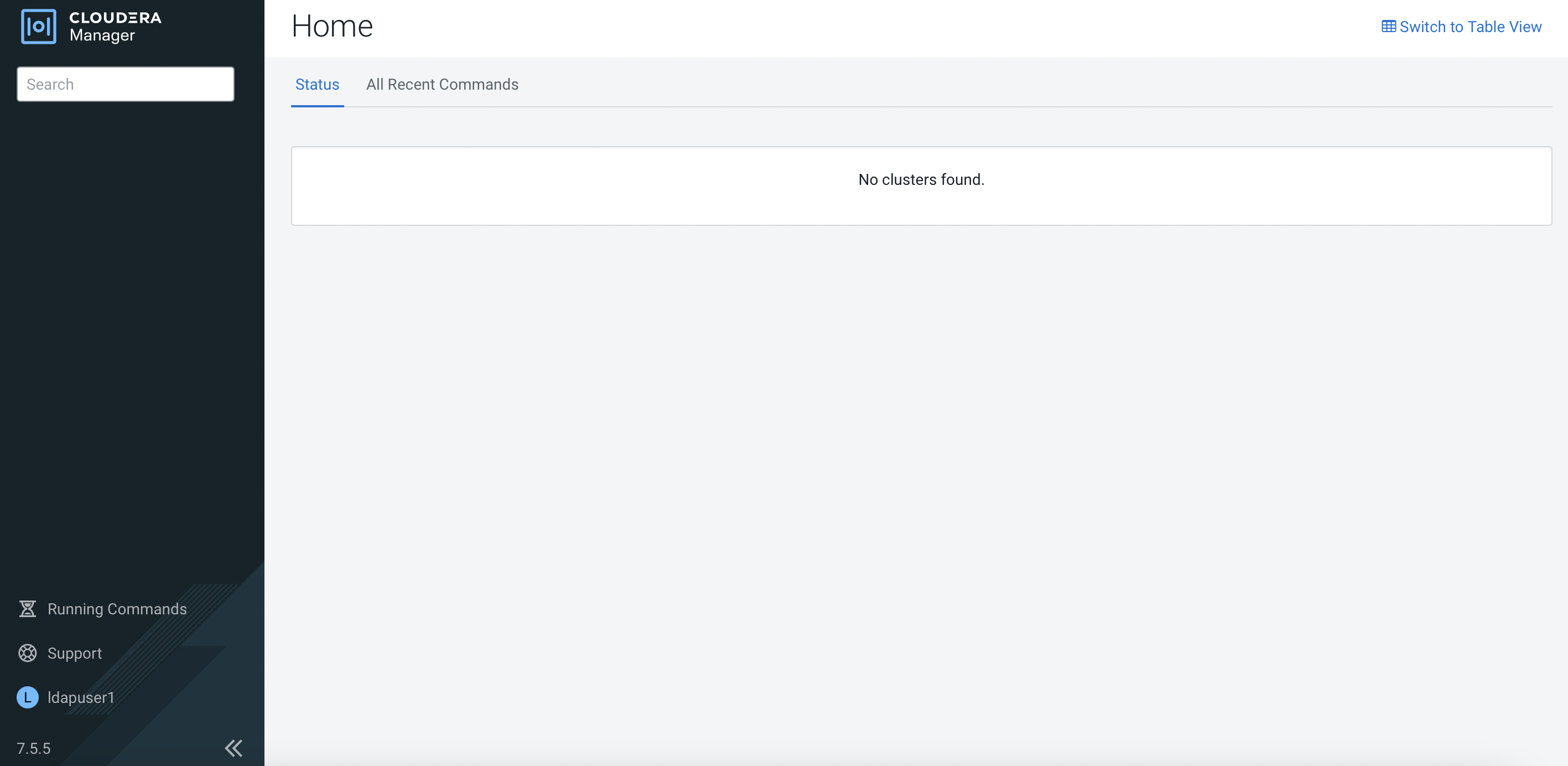
# tail -f /var/log/cloudera-scm-server/cloudera-scm-server.log 2022-05-20 18:55:43,353 INFO scm-web-155:com.cloudera.server.web.cmf.CmfLdapUserDetailsContextMapper: External user ldapuser1 logged in without any roles. 2022-05-20 18:55:43,414 INFO scm-web-155:com.cloudera.server.web.cmf.AuthenticationSuccessEventListener: Authentication success for user: 'ldapuser1' from 10.96.83.175 -
Log out and log in with the database admin account. Navigate to
Administration>Users & Roles.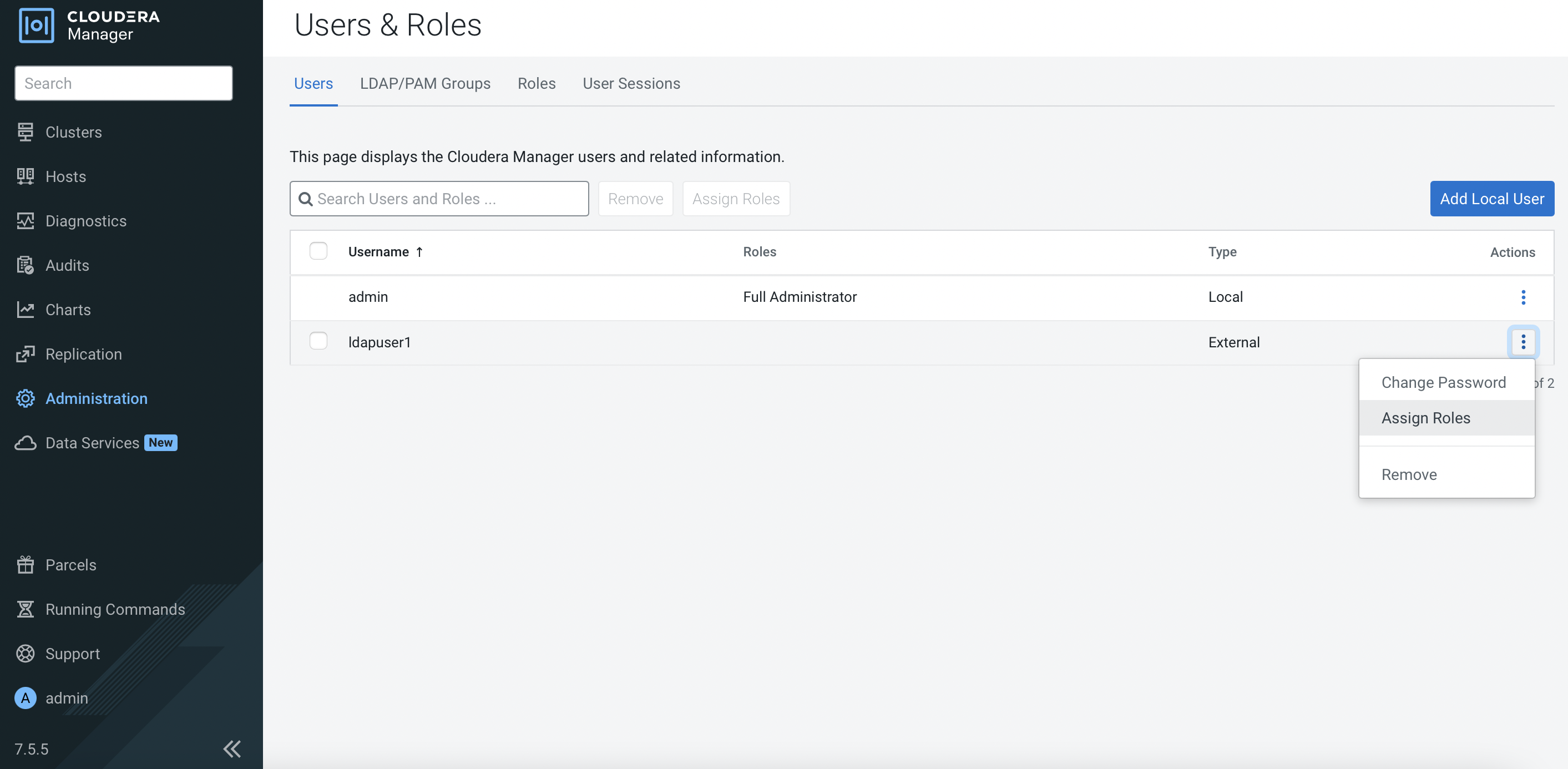
-
Assign
Full Administratorrole for this ldap user.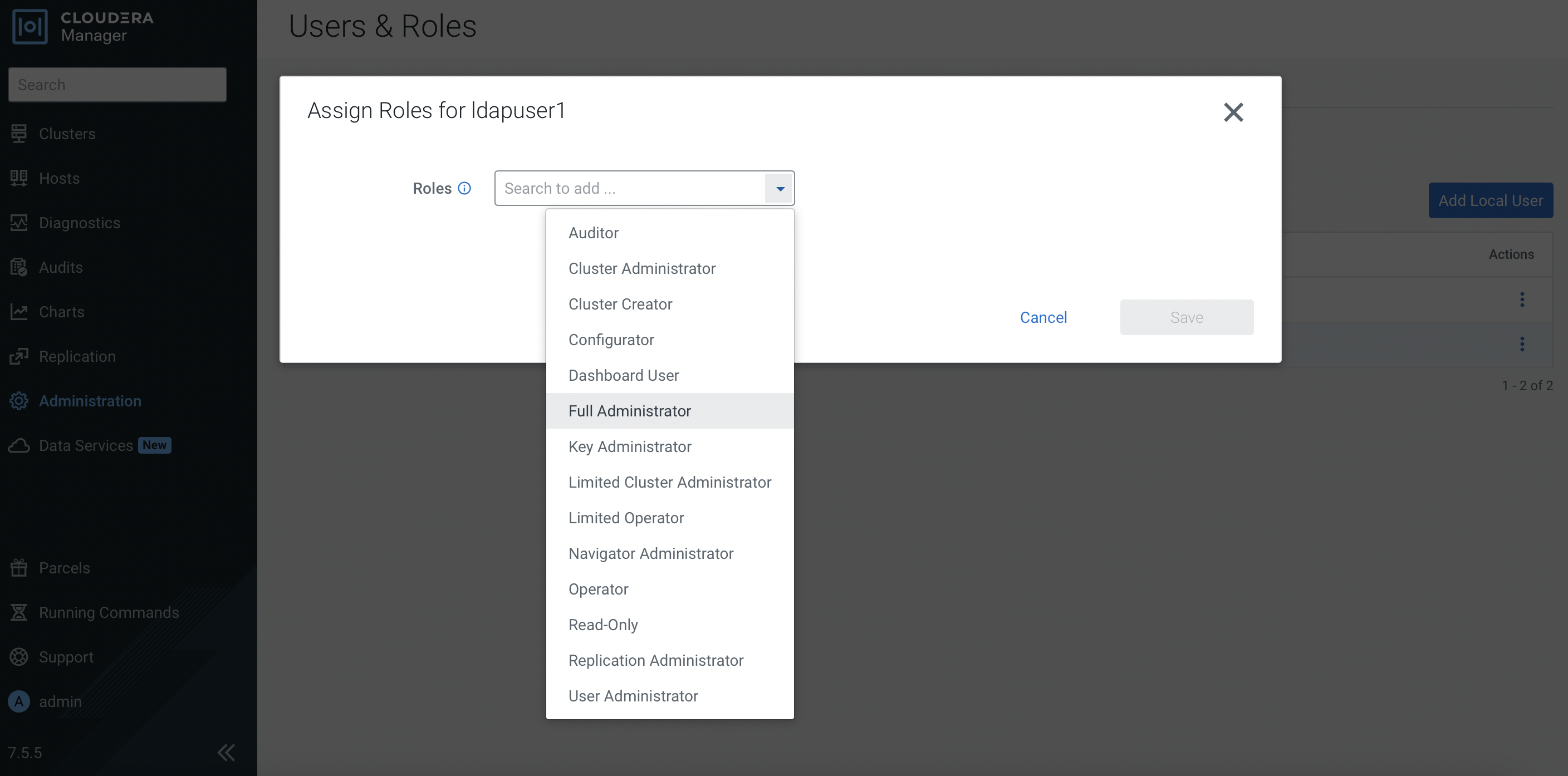
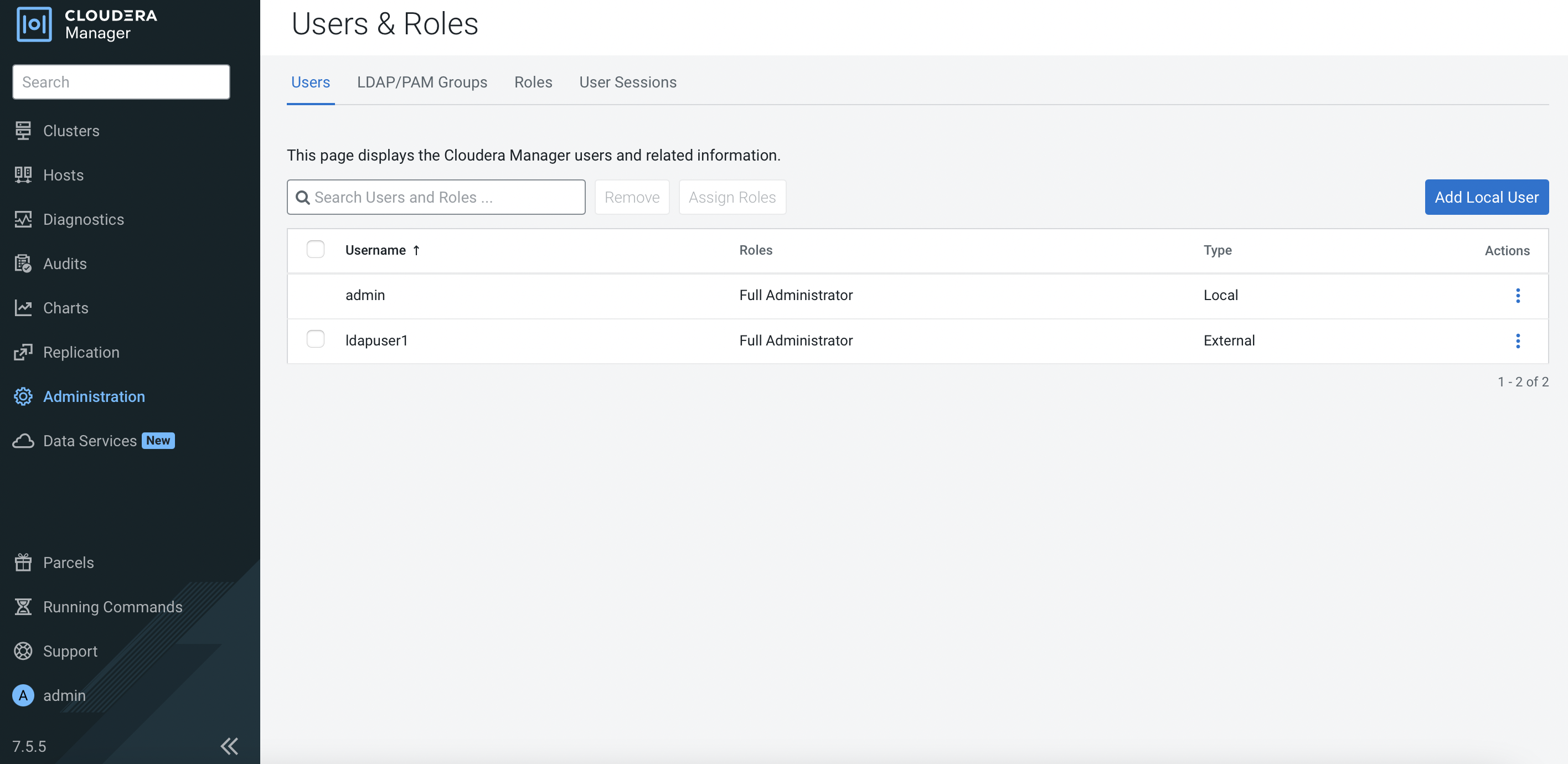
-
Log out and log in with the ldap user again. This time this ldap user has full access of the CM dashboard.
Next Step
- Proceed to create the CDP Base cluster in the next topic.