Data Services Console
This article explains the steps to configure the CDP PvC Data Services environment. This sets the stage for hosting CML, CDE and CDW services which will be explained in the subsequent subtopics.
- TOC
LDAP User Setting
-
In CM, navigate to
Data Services. ClickOpen CDP Private Cloud Data Services.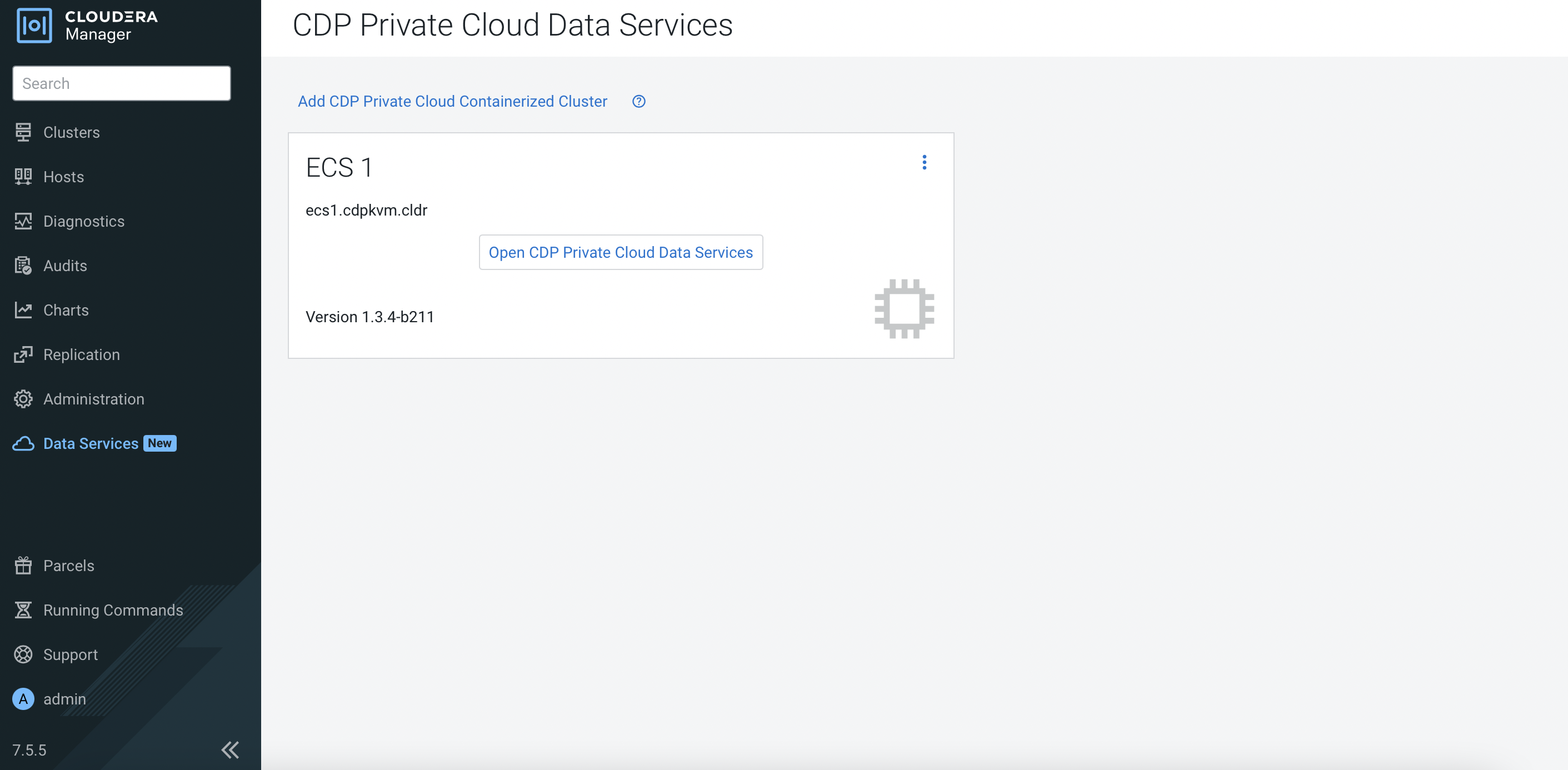
-
The system will redirect the browser to the
Management Consolelanding page. -
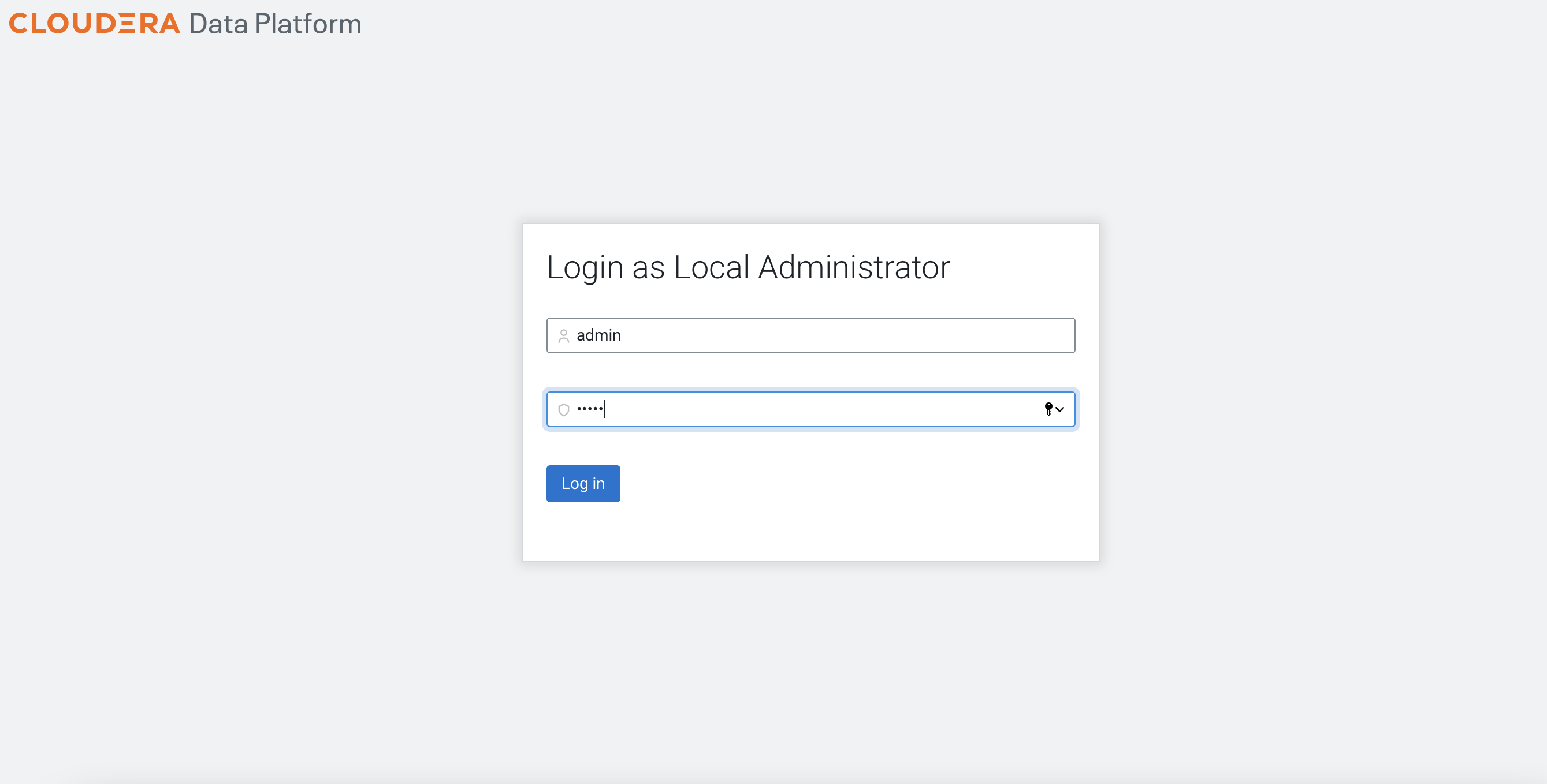
Log in as the Local Administrator.
-
Navigate to
Administration>Authentication. The external LDAP server is the centralized user authentication database that stores the user credentials with the associated group. This demo is connected to the Red Hat IPA. Fill in the necessary external LDAP server fields as shown in the following example. ClickTest Connectionand check that the connection is successful. ClickSave.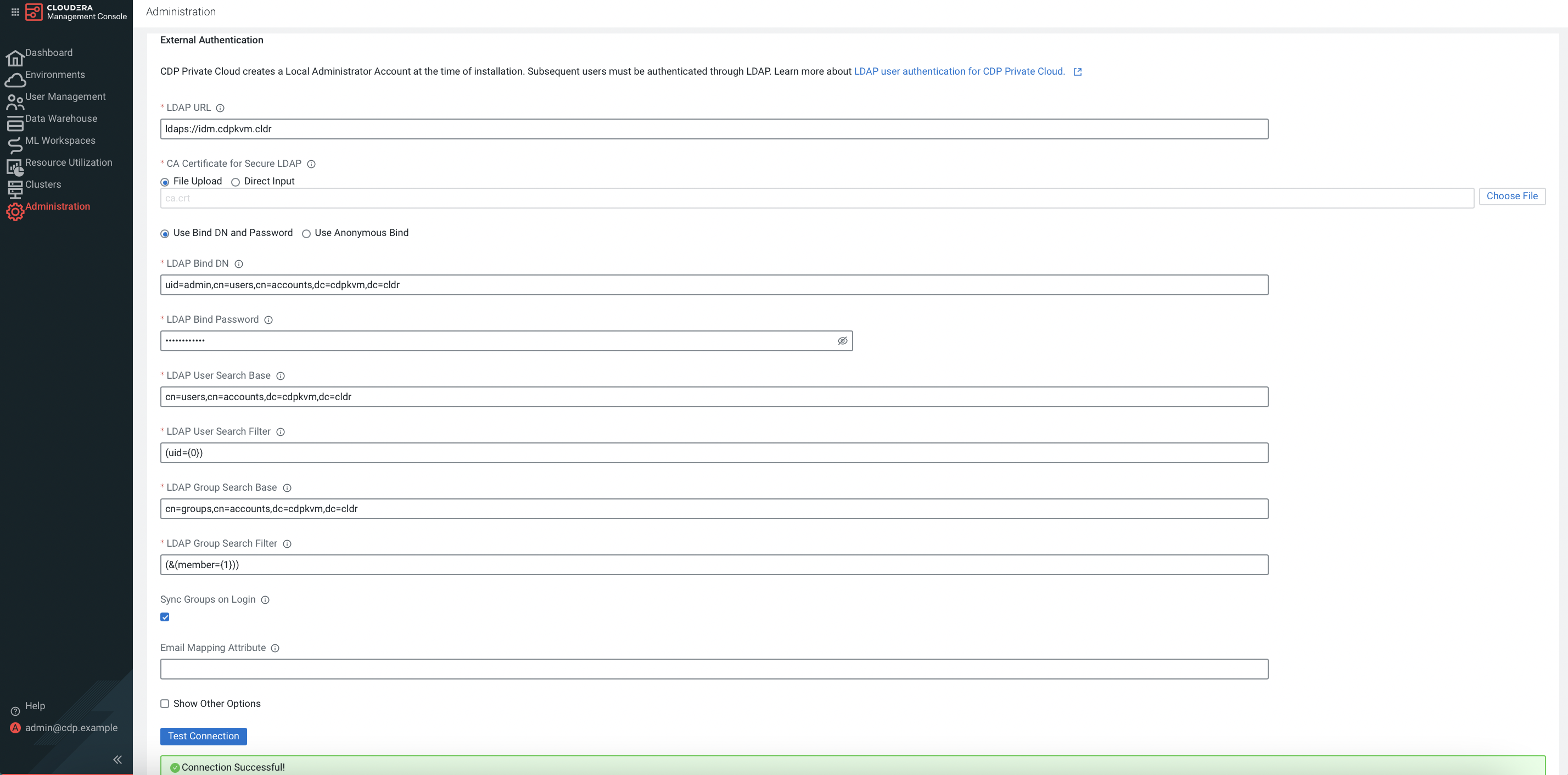
Cross check with the output of the LDAP command as shown in the example below.
#  ldapsearch  -H ldap://idm.cdpkvm.cldr:389 -D "uid=admin,cn=users,cn=accounts,dc=cdpkvm,dc=cldr" -w 'rootroot' -b "cn=users,cn=accounts,dc=cdpkvm,dc=cldr" '(&(uid=ldapuser1))' | grep -v "#"

dn: uid=ldapuser1,cn=users,cn=accounts,dc=cdpkvm,dc=cldr
displayName: ldapuser1 ldapuser1
uid: ldapuser1
krbCanonicalName: ldapuser1@CDPKVM.CLDR
objectClass: top
objectClass: person
objectClass: organizationalperson
objectClass: inetorgperson
objectClass: inetuser
objectClass: posixaccount
objectClass: krbprincipalaux
objectClass: krbticketpolicyaux
objectClass: ipaobject
objectClass: ipasshuser
objectClass: ipaSshGroupOfPubKeys
objectClass: mepOriginEntry
loginShell: /bin/sh
initials: ll
gecos: ldapuser1 ldapuser1
sn: ldapuser1
homeDirectory: /home/ldapuser1
mail: ldapuser1@cdpkvm.cldr
krbPrincipalName: ldapuser1@CDPKVM.CLDR
givenName: ldapuser1
cn: ldapuser1 ldapuser1
ipaUniqueID: 4a377c9c-d82b-11ec-995e-525400b4be20
uidNumber: 371000021
gidNumber: 371000021
krbLastPwdChange: 20220520105515Z
krbExtraData:: AAKTc4dia2FkbWluZEBDRFBLVk0uQ0xEUgA=
mepManagedEntry: cn=ldapuser1,cn=groups,cn=accounts,dc=cdpkvm,dc=cldr
memberOf: cn=ipausers,cn=groups,cn=accounts,dc=cdpkvm,dc=cldr
krbTicketFlags: 128
krbLoginFailedCount: 0
krbPasswordExpiration: 20220818105515Z
# ldapsearch -H ldap://idm.cdpkvm.cldr:389 -D "uid=admin,cn=users,cn=accounts,dc=cdpkvm,dc=cldr" -w 'rootroot' -b "cn=groups,cn=accounts,dc=cdpkvm,dc=cldr" '(&(member=uid=ldapuser1,cn=users,cn=accounts,dc=cdpkvm,dc=cldr))' | grep -v "#" dn: cn=ipausers,cn=groups,cn=accounts,dc=cdpkvm,dc=cldr objectClass: top objectClass: groupofnames objectClass: nestedgroup objectClass: ipausergroup objectClass: ipaobject description: Default group for all users cn: ipausers ipaUniqueID: 894cae12-bcd2-11ec-9ceb-525400b4be20 member: uid=cmadmin-97fd6767,cn=users,cn=accounts,dc=cdpkvm,dc=cldr member: uid=ldapuser1,cn=users,cn=accounts,dc=cdpkvm,dc=cldr member: uid=test,cn=users,cn=accounts,dc=cdpkvm,dc=cldr -
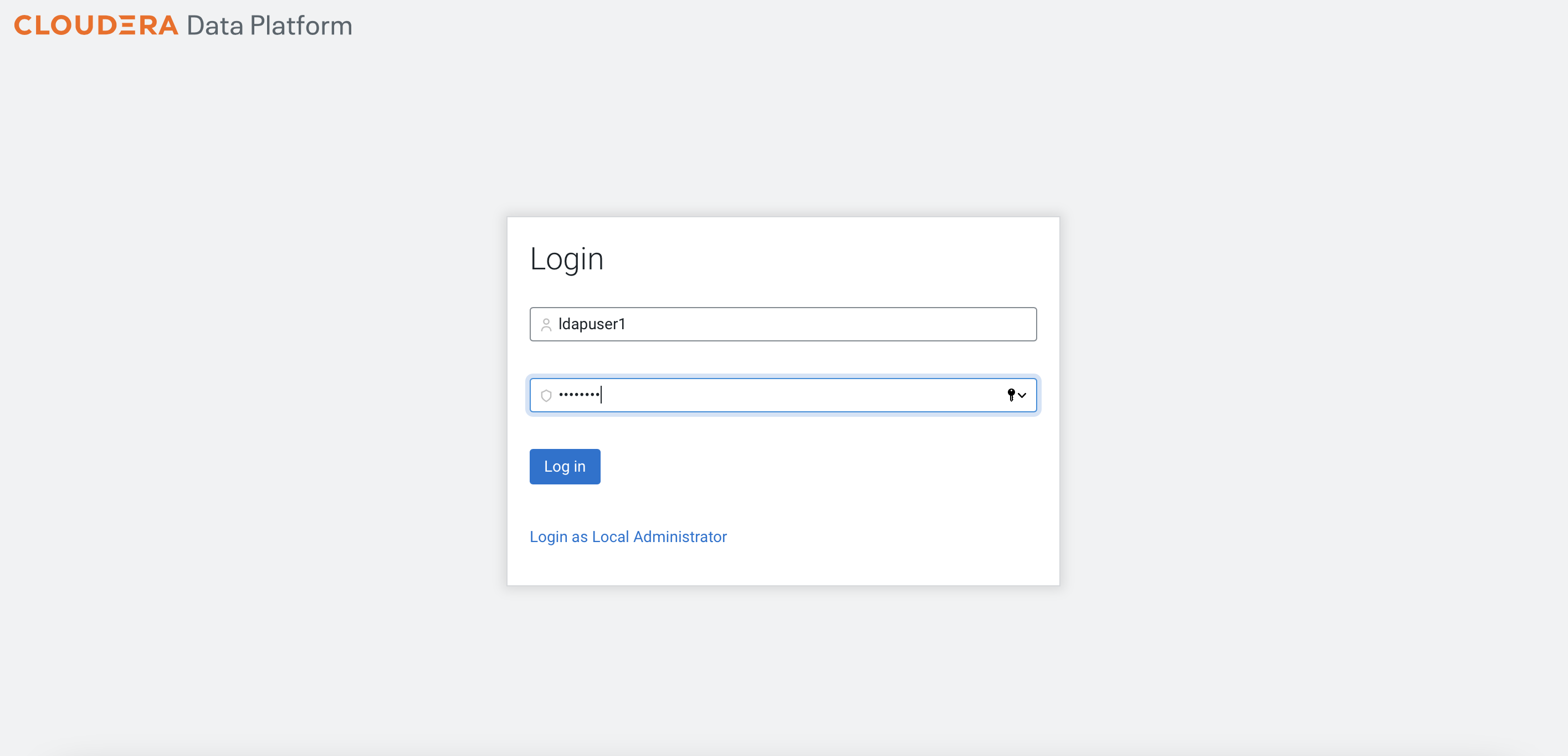
Log out and log in using the LDAP user credential.
-
The system is expected to prompt "You don't have the access rights".
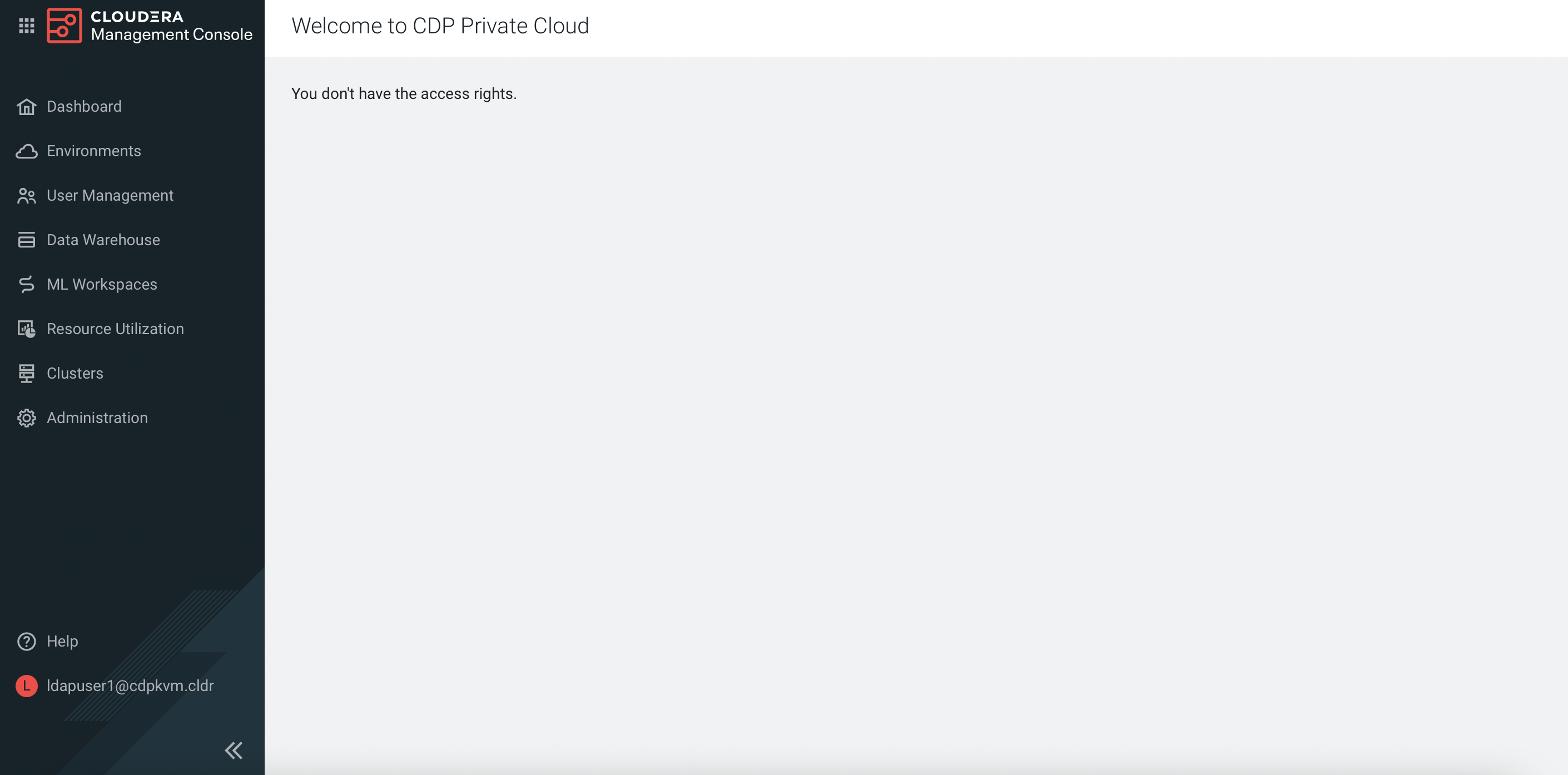
-
Log out and log in as the Local Administrator. Navigate to
User Management. ClickUpdate Rolesnext to the LDAP user.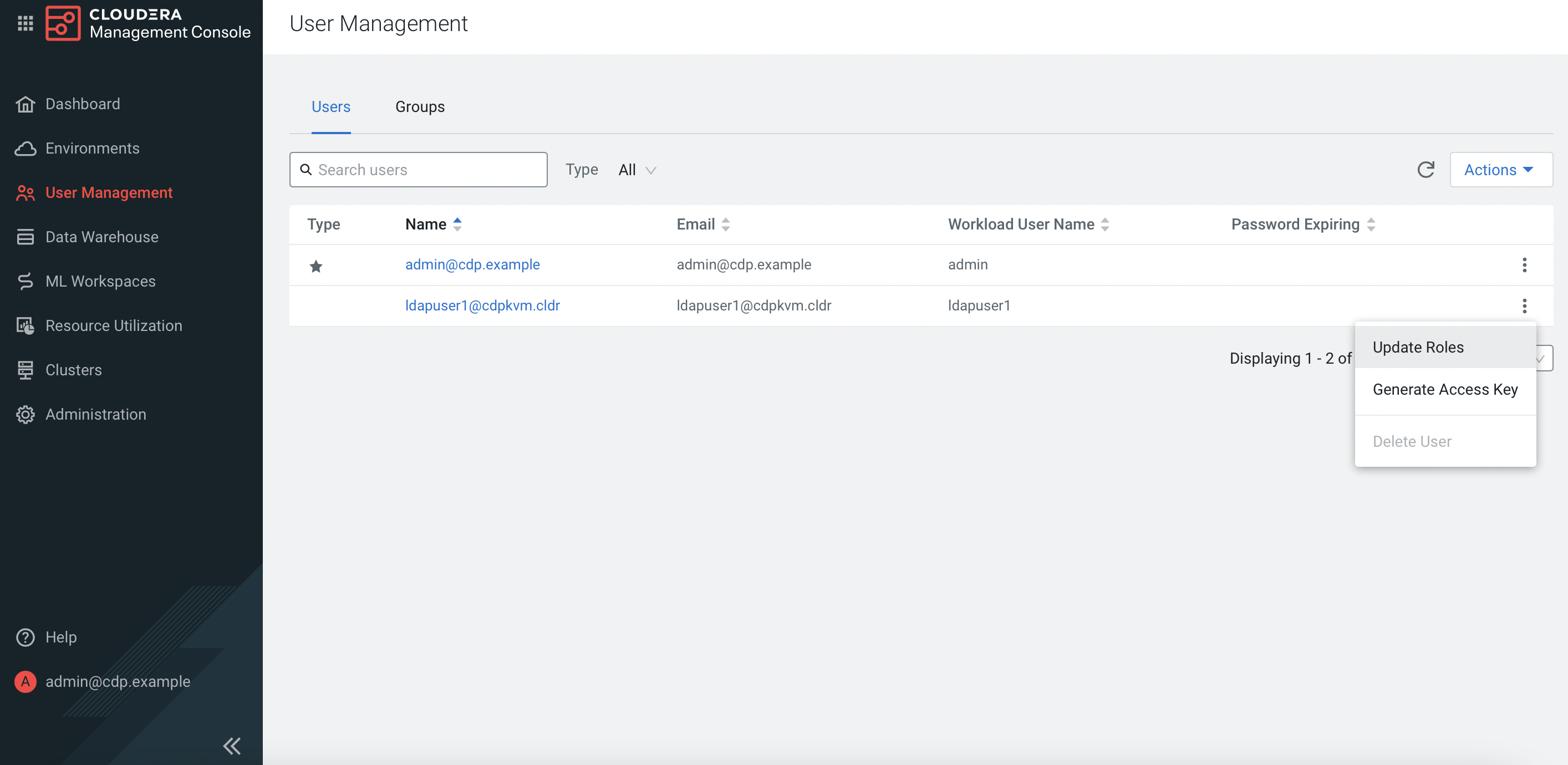
-
Select the roles for this LDAP user accordingly. Click
Update Roles.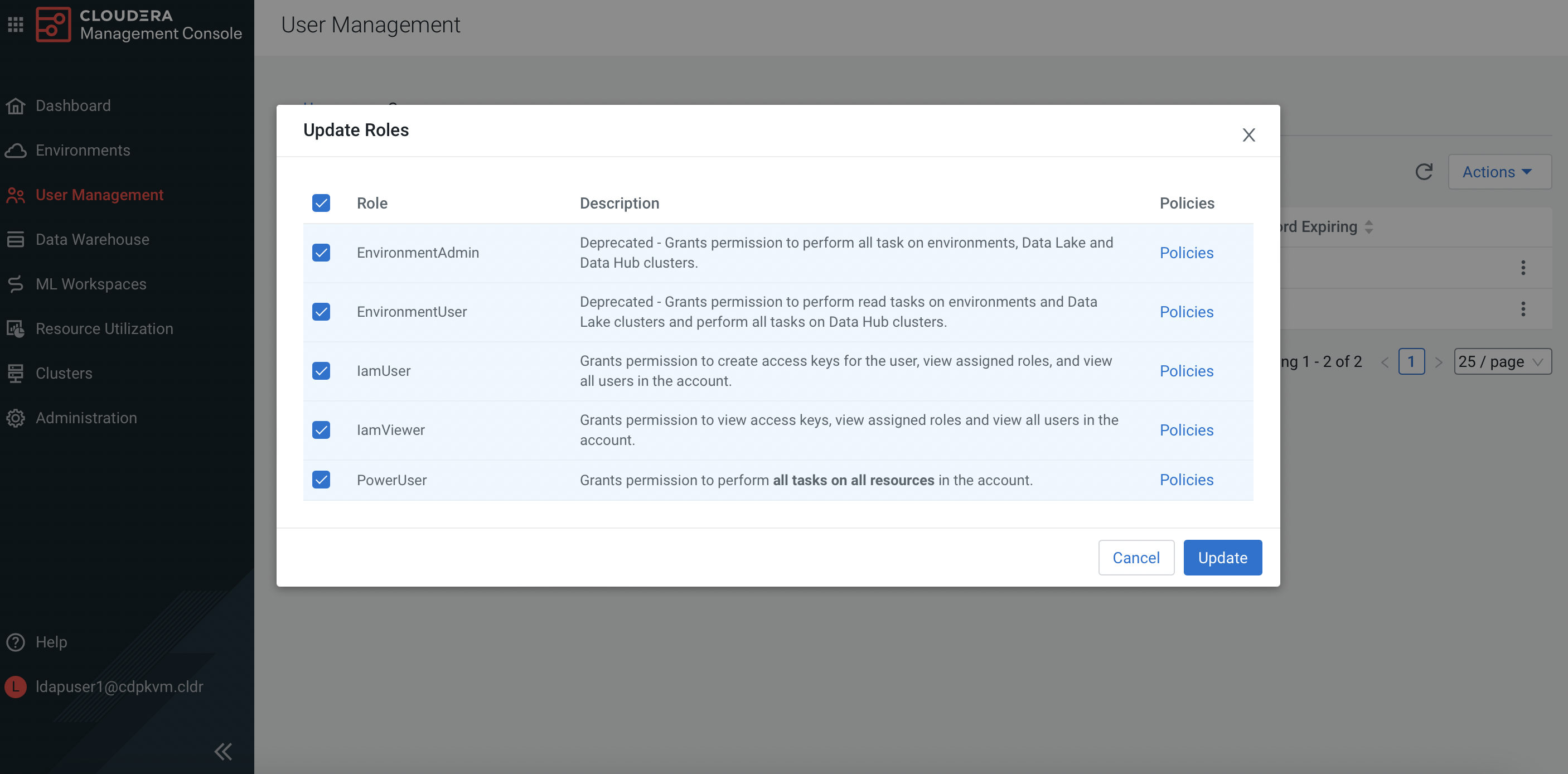
-
Log out and log in as the LDAP user. This time, the LDAP user will get full access rights.
CDP Data Lake Environment
-
Log in as the LDAP user. Navigate to
Environments. There is only one environment which is the default environment created by the system upon successful installation of the ECS platform. ClickRegister Environment. Fill in the fields to create a data lake environment for the CDP Data Services to use.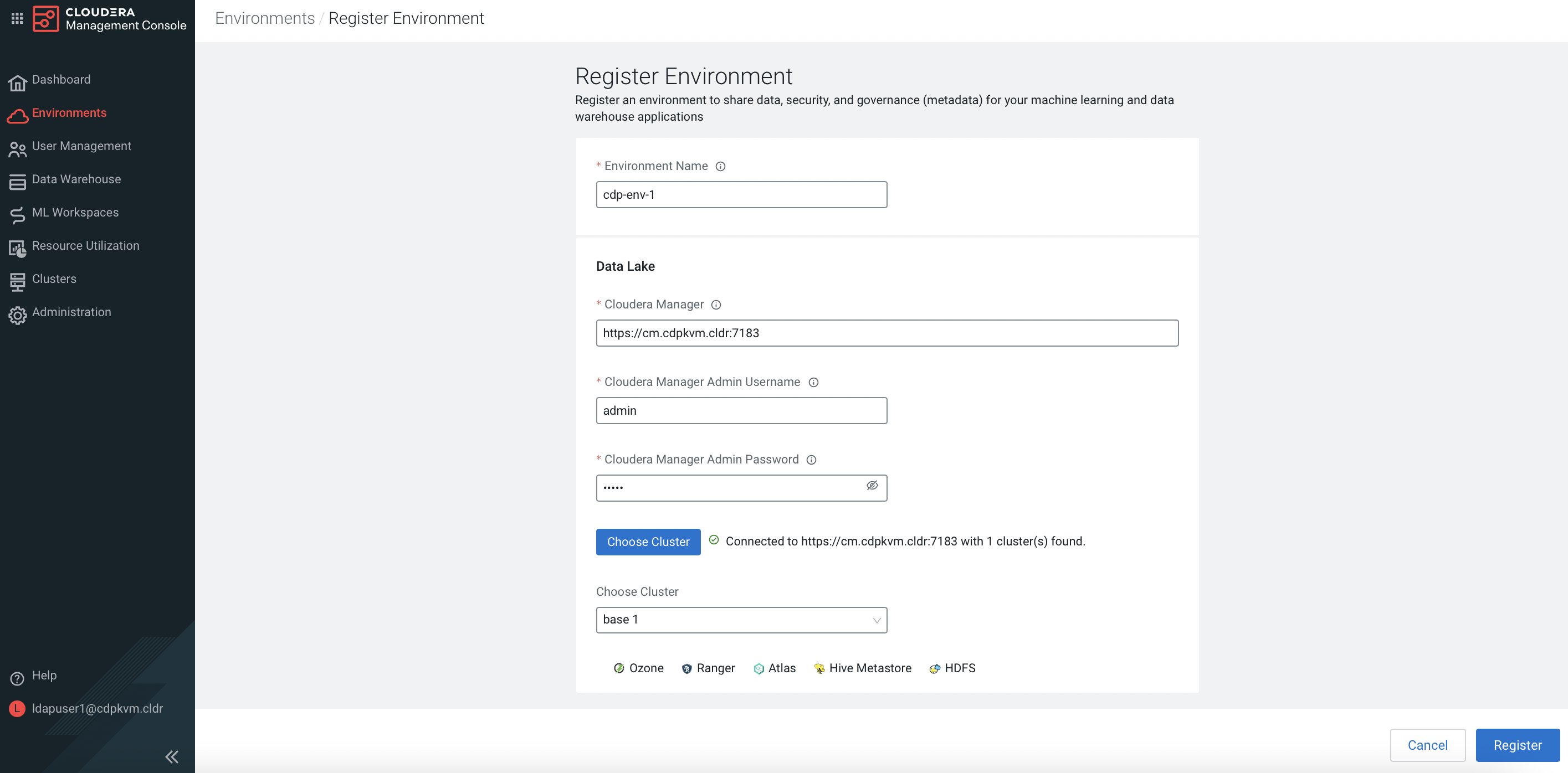
-
Click
Manage Accessof this newly created environment.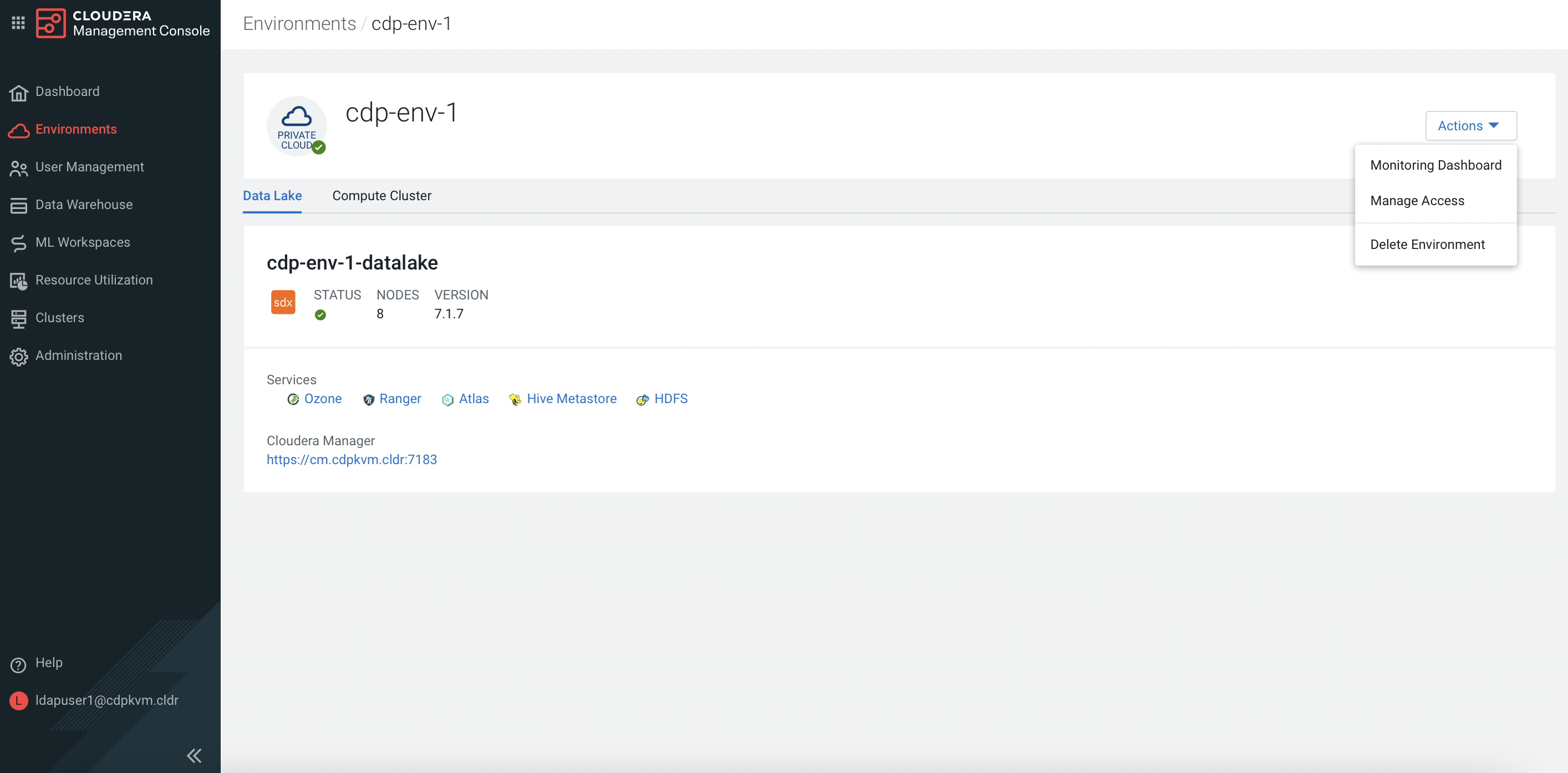
-
Select the
DL*,DE*andML*roles for this LDAP user in this newly created environment accordingly. ClickUpdate Roles.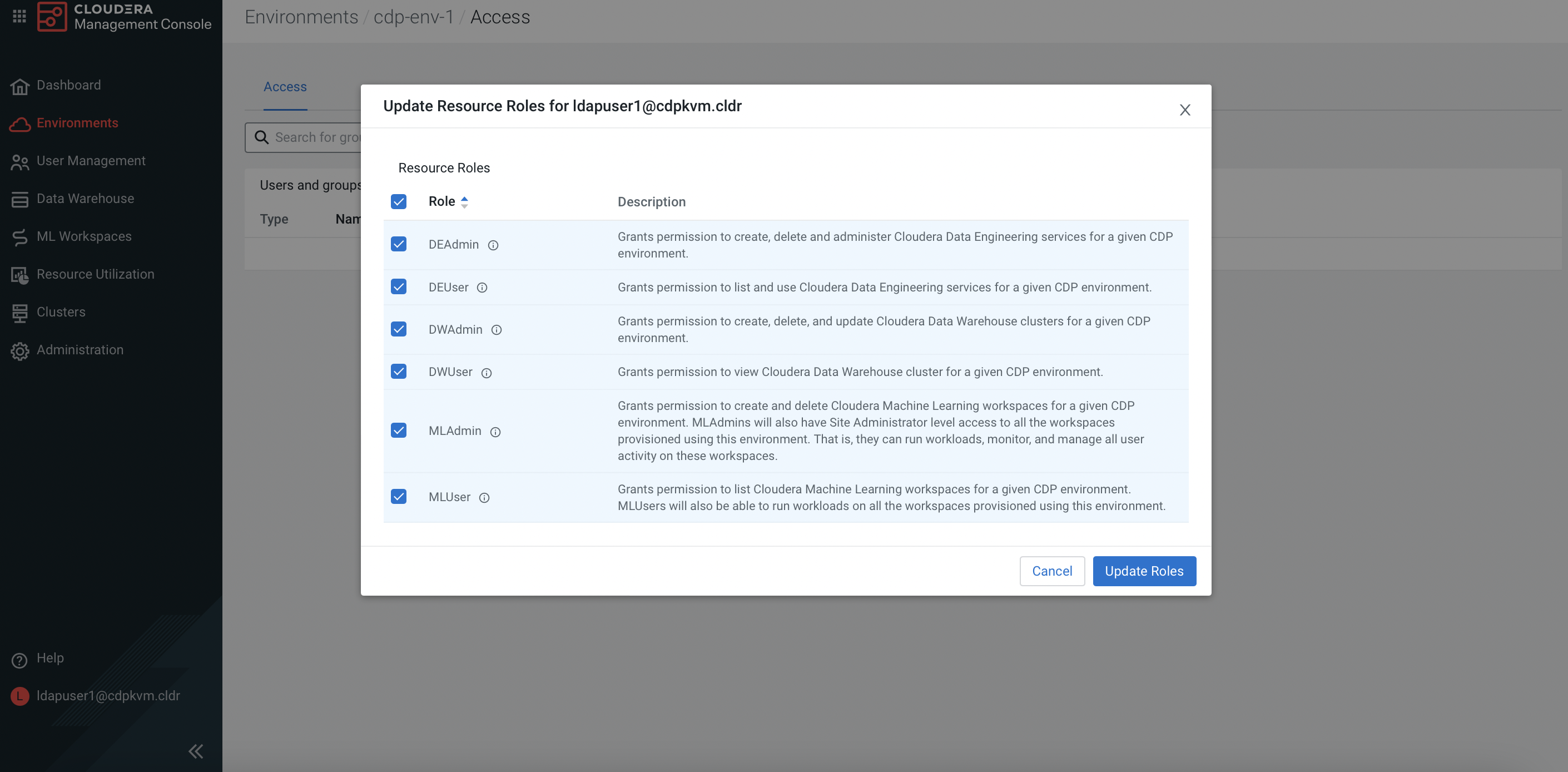
Next Step